

How to Create AI Images, Edit Photos & Design Graphics (2026 Guide)
Artificial intelligence is changing the way people create digital content. You no longer need advanced photography skills, expensive editing software, or years of graphic design experience to get started. With the right AI tools and well-written prompts, beginners can create stunning images, improve ordinary photos, and design professional graphics from a computer or smartphone AI image generation.
Whether you are a blogger, content creator, photographer, social media manager, or small business owner, AI-powered creative tools can help you turn ideas into visual content more efficiently.
In this guide, you will learn how to create AI images from text, edit photos using artificial intelligence, design graphics for social media, write better AI prompts, and choose the right tools for your creative projects.
What Is AI Image Generation?
AI image generation is a technology that creates images from written descriptions, reference images, or other supported inputs. You describe what you want to see, and an AI image generator produces a visual interpretation of your instructions.
For example, you could enter a prompt asking for a cinematic mountain landscape, a professional product photograph, a wedding background, or a colorful illustration. Depending on the tool, you may also be able to adjust the image style, aspect ratio, lighting, composition, and other details.
AI-generated images are useful for:
- Blog featured images and website illustrations
- YouTube thumbnails and social media posts
- Wedding photography concepts and cinematic backgrounds
- Product mockups and advertising creatives
- Digital art, posters, and wallpapers
- Presentation slides and educational graphics
The final result depends on the tool, the prompt, and any editing you perform afterward.
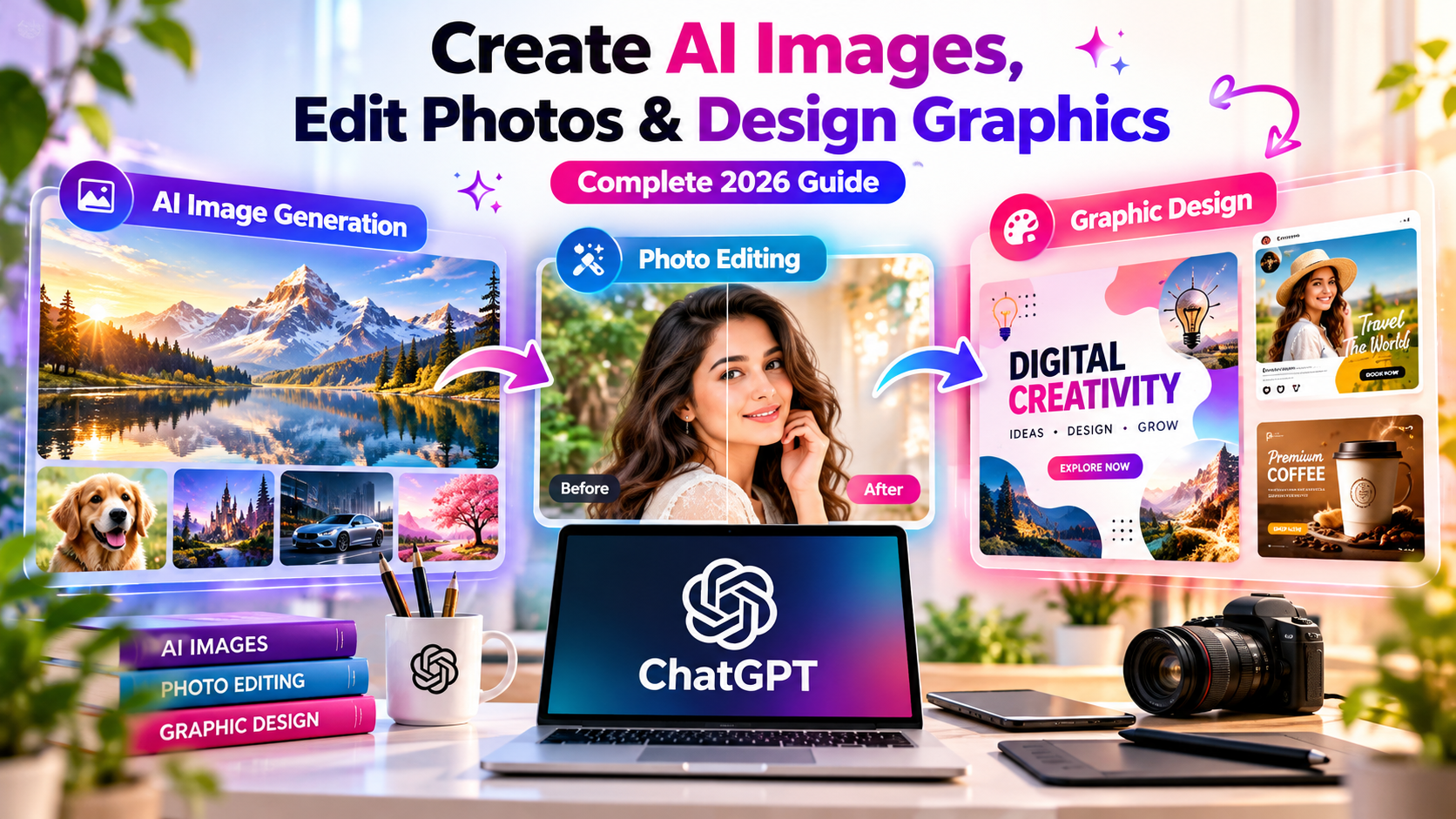
1. How to Create AI Images From Text
Creating an image with AI is straightforward. Most text-to-image tools allow you to describe a scene and generate a visual based on your instructions.
Step 1: Choose an AI Image Generator
Select a tool that matches your needs. Options include ChatGPT image generation, Adobe Firefly, Canva’s AI image features, and other text-to-image platforms. Features, free usage limits, and commercial-use terms vary between services.
Step 2: Write a Detailed AI Image Prompt
A good prompt explains the subject, background, style, lighting, composition, and image format.
Instead of writing only “beautiful landscape,” provide a more descriptive prompt.
Example AI image prompt:
“Create a photorealistic mountain landscape at sunrise, with snow-covered peaks, a calm lake reflecting the mountains, soft golden sunlight, atmospheric mist, natural colors, detailed textures, balanced composition, and a cinematic photography style. No text, no watermark.”
This gives the image generator a clearer understanding of the desired result.
Step 3: Generate the Image
Enter your prompt into the selected tool and generate the image. If the first result is not suitable, improve the description or change specific details.
For example, you can request warmer colors, a wider composition, softer lighting, or a different background.
Step 4: Refine and Download
Use any available editing options to refine the image. Check the composition, visible text, hands, faces, and other fine details before downloading it.
Choose the correct aspect ratio for your intended use:
- 16:9 for blog banners, presentations, and YouTube thumbnails
- 9:16 for Instagram Reels, Stories, and other vertical content
- 1:1 for square social media graphics
- 4:5 for portrait-oriented social media posts
Always confirm the actual export dimensions before publishing.
2. How to Edit Photos With AI
AI photo editing allows you to modify existing pictures using automated adjustments, text instructions, or specialized editing features.
Depending on the software, you may be able to remove unwanted objects, replace backgrounds, improve image quality, adjust lighting, retouch portraits, or extend an image beyond its original borders.
Popular AI Photo Editing Tasks
Background removal: Remove a distracting background from a product photo, portrait, or other suitable image.
AI background replacement: Replace the original background with a studio setting, outdoor landscape, wedding backdrop, or another suitable environment.
Photo enhancement: Improve sharpness, reduce noise, and adjust image clarity. Enhancement cannot always recover details that were never captured.
Object removal: Remove selected unwanted objects from an image. AI image generator
Review the surrounding area because AI may create visual artifacts.
Portrait retouching: Make subtle adjustments to lighting, skin texture, and overall appearance while preserving the subject’s identity.
Image expansion: Extend the canvas and generate additional background details when the tool supports outpainting.
Step-by-Step AI Photo Editing Tutorial
- Open an AI photo editor that supports your required editing feature.
- Upload your original photograph.
- Select the editing function, such as background removal or object removal.
- Enter a clear instruction describing the change.
- Review the generated result and correct any unwanted alterations.
- Export the finished image in the appropriate format and resolution.
Example AI Photo Editing Prompt
“Edit this photograph by replacing only the background with a professional cream-and-white studio backdrop. Preserve the person’s face, facial features, hairstyle, clothing, body proportions, and original pose. Match the new background lighting naturally with the subject. Keep the result realistic and clean AI photo editing .”
For important portraits, explicitly mention which elements must remain unchanged. However, generative editing tools may still alter some details, so always inspect the output.
3. How to Create Professional Graphics With AI
AI graphic design tools help users create visual assets for websites, social media, advertisements, presentations, and branding projects.
You can use AI to brainstorm design concepts, generate background artwork, explore color palettes, and create initial layouts. Many designs still benefit from manual adjustments to typography, spacing, contrast, and alignment AI graphic design.
What Can You Create With AI Graphic Design?
- Social media posts and promotional banners
- YouTube thumbnails and channel artwork
- Website headers and blog featured images
- Wedding title backgrounds and invitation concepts
- Product advertisements and marketing creatives
- Posters, flyers, and presentation visuals
- Logo concepts and brand mood boards
How to Create AI Graphics Step by Step
Step 1: Define the purpose. Decide whether you need a website banner, advertisement, social media post, or another graphic.
Step 2: Choose the dimensions. Select an appropriate canvas size for the platform where the graphic will appear.
Step 3: Describe the design. Specify the subject, background, colors, layout, visual style, and space required for text.
Step 4: Generate the artwork. Use an AI image or design tool to produce a concept.
Step 5: Refine the layout. Add or correct text, adjust spacing, and ensure that the important elements are easy to read.
Step 6: Export the design. Use PNG for many graphics, JPEG for suitable photographic images, or SVG/PDF when your design workflow supports those formats and requires scalable artwork.
Example AI Graphic Design Prompt
“Create a professional website banner for a digital creativity blog. Use a modern cream-and-white background with subtle pink gradients, elegant lighting, minimal decorative shapes, and balanced negative space. Place the main visual on the right and leave clear empty space on the left for a headline. Use a clean, premium, contemporary design. Do not generate any text or logos.”
You can add your website headline and branding afterward in a graphic design editor to maintain accurate spelling and consistent typography.
4. Best AI Tools for Image Generation, Photo Editing, and Graphic Design
Different tools specialize in different creative tasks. The best choice depends on your budget, experience, and intended output.
ChatGPT Image Generation
ChatGPT can help turn written ideas into images and, where supported, make changes to uploaded images through natural-language instructions. It is useful for concept creation, creative experiments, and iterative image editing.
Adobe Firefly
Adobe Firefly offers AI-assisted creative features for image generation and editing. It may be useful for creators who want to explore visual concepts and integrate AI-assisted workflows into Adobe’s creative ecosystem.
Canva
Canva provides graphic design templates and AI-assisted features, depending on the plan and feature availability. It is useful for social media posts, presentations, promotional graphics, and other everyday design projects.
Photopea
Photopea is a browser-based image editor suited to manual image editing and layered design work. Its available features and workflow differ from dedicated generative AI tools, so check whether you need an AI-specific function or a conventional editor.
How to Choose the Right Tool
Before choosing an AI design tool, compare:
- Free usage limits and subscription costs
- Image quality and available output sizes
- Background removal and image editing features
- Commercial-use permissions and licensing conditions
- Export formats and watermark restrictions
- Ease of use on mobile devices and desktop computers
Do not assume that every tool offers unlimited free image generation or that every output can automatically be used for commercial purposes. Check the current terms for the specific service and feature.
5. How to Write Better AI Image Prompts
The prompt is one of the most important parts of a text-to-image workflow. A vague description may produce an unpredictable result, while a structured prompt gives the tool more useful direction AI-generated images for blogs.
A practical prompt formula is:
Subject + Action + Environment + Style + Lighting + Composition + Output Requirements
For example:
” how to create AI images Create a premium product photograph of a black wireless headphone placed on a minimal stone pedestal in a modern studio. Use soft side lighting, realistic reflections, a neutral background, detailed materials, and a clean commercial photography style. Compose the image horizontally with negative space on the left for advertising text .”
Five Ready-to-Use AI Prompts
1. Cinematic landscape prompt
” how to create graphics with AI Create a cinematic landscape featuring a peaceful lake, distant mountains, golden-hour sunlight, soft mist, realistic reflections, natural textures, and a balanced wide-angle composition.”
2. Professional product photography prompt
“Create a clean studio photograph of a premium skincare bottle on a cream-colored surface, with soft shadows, realistic materials, subtle reflections, elegant composition, and commercial product photography lighting.”
3. Wedding background prompt
” how to edit photos with AI Design an elegant wedding highlight background with cream-white and soft blush-pink gradients, delicate floral corners, subtle light effects, refined decorative details, and generous empty space for a wedding title. Use a sophisticated, premium visual style.”
4. Social media graphic prompt
” best free AI image generator Create a modern social media graphic for a digital creativity tutorial. Use a clean layout, strong visual hierarchy, balanced spacing, a limited color palette, and an uncluttered background. Leave space for a headline and call-to-action.”
5. Digital painting prompt
” AI image prompts for beginners Transform the provided reference photograph into a polished digital painting while preserving the subject’s recognizable facial features, pose, clothing, and overall composition. Use detailed brushwork, controlled lighting, clean edges, how to remove photo background with AI and rich but natural colors AI photo enhancer.”
These prompts are starting points. Adjust the wording to suit the tool, the subject, and the intended use.
6. How to Create AI Images for Websites and Blogs
Blog images should help readers understand the article rather than simply decorate the page.
Follow these practical guidelines:
- Create original visuals that directly relate to the article.
- Use suitable dimensions for the featured image and inline illustrations.
- Compress images to improve loading performance without making them visibly poor.
- Use descriptive file names, such as ai-photo-editing-tutorial.webp.
- Add meaningful alternative text that describes the image.
- Place each image near the relevant section of the article.
- Avoid unnecessary text inside images when the same information can be presented as accessible HTML text.
For example, an image demonstrating background removal could use the alt text: “Example of AI photo editing with the original background replaced by a studio background.”
Alternative text should describe the actual image. Do not fill it with a list of unrelated keywords.
7. Can You Use AI-Generated Images Commercially?
Commercial use depends on the tool, its terms, the applicable law, and the content of the generated image. Before using an image in an advertisement, client project, website, or product, review the relevant licensing and usage conditions.
Keep these precautions in mind:
- Do not assume that every AI-generated image is automatically copyright-free.
- Avoid uploading photographs or documents without the necessary permission.
- Be careful when generating recognizable people, branded products, or protected characters.
- Check whether the tool imposes restrictions on commercial use or particular content.
- Keep records of relevant licenses and original assets for professional projects.
AI generation does not remove the need to respect other people’s intellectual property, privacy, and applicable rights.
8. Common AI Image Generation Mistakes to Avoid
Writing prompts that are too vague: Add useful details about the subject, composition, style, and lighting AI background remover.
Ignoring image dimensions: Generate or crop images for the platform where they will appear.
Accepting the first result: Review the image and refine any visual errors.
Using unreadable AI-generated text: Add important headings, logos, and labels in a design editor when necessary.
Over-editing portraits: Review facial features, hands, clothing, and background transitions to avoid unnatural results.
Ignoring licensing: Check the relevant tool terms before using an image commercially.
Publishing unhelpful visuals: Every image should support the reader’s understanding or improve the overall presentation.
Frequently Asked Questions (FAQs)
1. How can I create AI images for free?
Some AI tools offer free access or limited free image generation. Available features and limits change, so check the current plan before starting.
2. Which AI tool is best for creating images?
The best tool depends on your needs. ChatGPT image generation can help with prompt-based creation and supported editing, while other services may offer different design, editing, or workflow features.
3. How can I edit photos using AI?
Upload a photograph to a compatible AI photo editor, choose a feature such as background removal or object removal, describe the desired changes, review the result, and export the edited image.
4. Can AI create professional graphic designs?
AI can help create design concepts, backgrounds, and visual assets. Professional results often require additional work on typography, alignment, branding, and layout.
5. Can I use AI-generated images on my blog?
You can use images when your intended use complies with the relevant tool terms and applicable laws. AI design tools Check commercial-use permissions and avoid unauthorized use of protected material AI image editing tools.
6. What is the best AI image prompt for beginners?
Start with a clear description of the subject, setting, style, lighting, and composition. Include specific requirements and refine the prompt after reviewing the first result.
7. Does AI image generation require graphic design skills?
No advanced design skills are required to get started. However, basic knowledge of composition, colors, typography, and image quality can help you produce better results.
8. How can I improve AI-generated image quality?
Use specific prompts, choose suitable output dimensions, refine the composition, and inspect details before publishing. If needed, use an appropriate enhancement tool without expecting it to restore every missing detail.
Conclusion
AI image generation, AI photo editing, and AI graphic design can help beginners and experienced creators produce useful visual content more efficiently. By choosing the right tool, writing detailed prompts, checking the output carefully, and following licensing requirements, you can create images for blogs, websites, social media, marketing, and creative projects.
Start with one simple project, experiment with different prompts, and improve the result through editing. The most effective workflow combines AI assistance with your own creative judgment.
At BlogPostOnline.com, explore more practical tutorials to learn how digital tools can simplify content creation and everyday creative work.